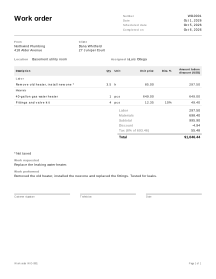
How to fill in a work order
- Parties. Enter your business under From and the client under Client. Open Job site when the work is not at the client’s address, or describe it under Location (building, floor, room).
- Number and schedule. Keep the suggested number (WO-0001) or type your own, then set the Scheduled date and who it is Assigned to. Under More options, Equipment holds a unit, vehicle or serial number.
- Work requested. Write what the client asked for or reported, in their words if possible.
- Labor and materials. Add a line for each, and set Type to Labor or Material. Hours go in Qty with “h” as the Unit; parts use pieces, meters or whatever you buy them in. In the editor, tick More columns above the lines for Item code, Unit, Disc. % and Taxed; Tax rate (%), which starts at 0, is in the Totals box.
- After the job. Fill in Work performed, tick Work completed and enter Completed on. Correct the hours and parts to what was actually used.
- Print or download. Print it for the crew or download the PDF. Sign-off lines are printed at the bottom.
- Bill it. Choose Create invoice when the job is done.
Example: the job as it was actually done
Names and figures are invented.
Northwind Plumbing estimated 3 hours and 3 fittings kits for a water heater swap. On site the crew needed 3.5 hours and 4 kits. The work order records the actual figures, with the same 8% tax rate on materials and the same 10% discount on the kits.
| Type | Description | Qty | Unit | Unit price | Disc. % | Taxed | Amount |
|---|---|---|---|---|---|---|---|
| Labor | Remove old heater, install new one | 3.5 | h | 85.00 | no | 297.50 | |
| Material | 40-gallon gas water heater | 1 | pcs | 649.00 | yes | 649.00 | |
| Material | Fittings and valve kit | 4 | pcs | 12.35 | 10 | yes | 49.40 |
- Labor subtotal: 3.5 × 85.00 = 297.50. Materials subtotal: 649.00 + 49.40 = 698.40.
- Subtotal 995.90. Discount: 10% of 49.40 = 4.94.
- Tax (8%) on the taxed amounts after discount: 649.00 + (49.40 − 4.94) = 649.00 + 44.46 = 693.46, and 693.46 × 8% = 55.4768 → 55.48.
- Total = 995.90 − 4.94 + 55.48 = 1,046.44.
Every line is rounded to the currency’s smallest unit (half away from zero) before the lines are added. Tax is rounded once for each tax rate, on the sum of the taxed lines at that rate.
Work orders in practice
Labor and materials
Keeping labor and materials on separate lines makes the job easy to check and to bill. The PDF groups them under Labor and Materials headings with a subtotal for each, so the client sees how much of the price is time and how much is parts. Record hours in decimals: 3 hours 30 minutes is 3.5, 45 minutes is 0.75.
Before and after the job
The same form serves both moments. Before the job it is the instruction to the crew: Work requested, Location, Assigned to and the planned materials. After the job it is the record: Work performed, the real hours and parts, Work completed and Completed on. Print a copy for the crew before the job, update the same work order afterwards and print or download the finished version for the client.
Sign-off
The PDF ends with Customer signature, Technician and Date lines. These are printed lines for a pen, not electronic signatures. If you need a signed copy on file, sign the paper and scan or photograph it.
Estimate vs actual
When the work order was made from an estimate saved on this device, or you choose one under Compare with estimate, the Estimate vs actual panel compares the two: labor, materials, subtotal and total as estimated, plus Approved changes (approved change orders), against the work order, with the Variance and the labor hours. Variance = Actual − Revised (the estimate plus approved changes): a positive figure means the work order is priced higher than estimated. In the example, the total goes from 991.93 to 1,046.44, a variance of 54.51. It compares prices on your documents, not costs or profit. The panel needs saving on (Keep my documents on this device), because it reads the saved estimate; with saving off it is not shown. Tick Print this table on the work order to add it to the PDF; it is off by default, as the client’s copy usually does not need it.
From work order to invoice
When the job is finished, Create invoice copies the client, the lines and the tax rate into an invoice, so you bill what was actually done rather than what was estimated. The invoice shows the work order number under Based on, and the work order stays as it was. See all service job documents.
Your data
Work orders are not uploaded; the estimate comparison above only works once saving is on (how saving works).
Limits
- It does not schedule crews, track time or send the work order to anyone.
- It does not look up tax rates or decide what is taxable; the tax line is only the rate you type.
- It is not a contract template and does not add legal terms.