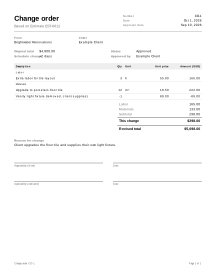
How to fill in a change order
- Start from the agreed work. Open the accepted estimate or work order and choose Create change order. The client, your business details, the estimate or work order number (shown as Based on, and filled in under Reference) and the Original total are copied; those two fields are then read-only. The original document is not changed. Without a saved estimate: if your agreement lives in another program or on paper, open the change order editor directly and type the agreed estimate or contract number under Reference and its total under Original total, in the same currency.
- Number and date. Change orders with the same estimate, work order or Reference text are counted together and numbered in sequence: CO-1, CO-2 and so on. Check the Date.
- Describe the change. Under Reason for change, say what changed and why, in plain words (“Client chose porcelain tile instead of ceramic”).
- Lines added and removed. Use + Add labor, + Add material or + Add item for each change, with quantity and unit price. Work or material that is removed gets a negative amount. The change order total is the sum of its lines.
- Schedule change. Enter the number of days the change adds under Schedule change (days), or a negative number if it saves time, or 0.
- Approval. The PDF prints Approved by and Date lines for both sides. A new change order has Status set to Draft (not approved yet). When the client has signed, choose Approved under Status and fill in Approval date and Approved by; if the client declines, choose Not approved. Only approved change orders count in the revised total and can be added to an invoice.
- Print or download. Print it or download the PDF for signature.
- Bill it. Approved changes can be added to the invoice with Add to invoice on the change order: tick the change orders to bill and choose a new invoice or a saved one for the same client.
Example: three changes to a bathroom job
Names and figures are invented.
Brightwater Renovations has an accepted estimate EST-0012 for a bathroom refit, original total 4,800.00. Amounts in this example carry no tax.
CO-1 (approved): the client upgrades the tile and supplies their own light fixture.
| Description | Qty | Unit price | Amount |
|---|---|---|---|
| Upgrade to porcelain floor tile | 12 m² | 18.50 | 222.00 |
| Extra labor for tile layout | 3 h | 55.00 | 165.00 |
| Vanity light fixture (removed, client supplies) | −1 | 89.00 | −89.00 |
CO-1 total = 222.00 + 165.00 − 89.00 = 298.00. Schedule change: +2 days.
CO-2 (approved): a recessed shelf niche, 1 × 340.00 = 340.00. Schedule change: +1 day.
CO-3 (not approved): heated floor, 1 × 950.00 = 950.00, +2 days. The client declined it.
| Change order | Status | Previous revised total | This change | Revised total | Days |
|---|---|---|---|---|---|
| CO-1 | Approved | 4,800.00 | 298.00 | 5,098.00 | +2 |
| CO-2 | Approved | 5,098.00 | 340.00 | 5,438.00 | +1 |
| CO-3 | Not approved | 5,438.00 | 950.00 | (not counted) | (+2, not counted) |
- Revised total = 4,800.00 + 298.00 + 340.00 = 5,438.00.
- Schedule = +2 + 1 = +3 days from approved changes.
- Had CO-3 been approved, the revised total would have been 5,438.00 + 950.00 = 6,388.00.
Change orders in practice
One sequence per job
Every change order points to the same original estimate, work order or Reference and carries the next number. The running revised total is always the original total plus every approved change order, so anyone can check it from the paper copies. A change order that was not approved stays in the sequence with its number but is not counted.
Added and removed work
A change can add work, remove work or both. Removed work is a line with a negative amount, so a change order can lower the price. Describe the removed item so the client can see what the credit is for.
Schedule days
Many changes also move the finish date. The change order records the change in days (+2, −1, 0), and the approved days are added up in the same way as the amounts. Agree with the client on what the days mean (working days or calendar days) and write it in the description.
Approval before the work
Agree on the change before you do the work, and get it signed. The approval lines are printed lines for a pen, not electronic signatures; sign the paper and scan or photograph it if you need a signed copy on file. In some places there are rules on what a change order must contain and when it must be signed, especially for home improvement work. Rules differ by country and state; check your local requirements.
Billing the changes
Approved changes are billed like the rest of the job: Add to invoice puts their lines on the invoice next to the original work. See all service job documents.
Your data
Change orders are never uploaded; save them on this device or download a backup to keep the whole sequence of a job (how saving works).
Limits
- It does not send the change order to the client or track who has seen it.
- It does not change the original estimate or work order.