How to fill in a timesheet
- Whose time. Enter the name under Person, choose the Currency for billable work and whether the Week starts on Monday or Sunday. To print a heading such as the week or the project instead of “Timesheet”, open More options and type it under Heading on the document.
- Default rate. If you bill most work at one hourly rate, type it under Default rate. A rate typed on an entry overrides it for that entry.
- One entry per stretch of work. Choose + Add entry for each stretch and set the Date, Start and End. Times can be typed as 09:00 or 17:30, and also as 900, 9.30, 9am or 5:30 PM; they are shown in 24-hour time (09:00, 17:30). A time that cannot be read is marked on the field itself. Enter unpaid or unbilled breaks in minutes under Break (min). For a shift past midnight, tick Ends next day.
- Tag, client and notes. Tag holds a project or task name, Client who the work was for, Notes anything else. Tags are used for totals per tag and for grouping invoice lines. Client and Notes are hidden at first: tick More columns above the entries in the editor to show them, and any other column you do not see.
- Billable or not. Entries are Billable unless you untick it. Non-billable time (admin, travel you do not charge) is still counted in the hours but never goes on an invoice.
- Check the totals. Each entry shows its hours in decimals and in hours and minutes. The totals show hours per day and per tag, billable and non-billable hours, and the billable amount. Hours per week appears once the entries span two or more weeks.
- Print, download or invoice. Print and Download PDF give a sheet with signature lines for the person and whoever approves it. Create invoice turns billable entries into invoice lines.
Example: a week with a night shift
Names and figures are invented.
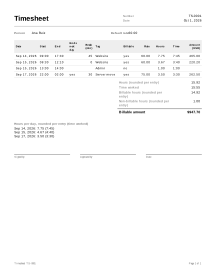
Ana Ruiz, a freelance web developer, logs one week starting on Monday. Her Default rate is 60.00; the night server move is billed at 75.00. Admin time is not billable.
| Date | Start | End | Ends next day | Break (min) | Tag | Billable | Rate | Hours | h:mm | Amount |
|---|---|---|---|---|---|---|---|---|---|---|
| Mon 2026-09-14 | 09:00 | 17:30 | 45 | Website | yes | 60.00 | 7.75 | 7:45 | 465.00 | |
| Tue 2026-09-15 | 08:30 | 12:10 | 0 | Website | yes | 60.00 | 3.67 | 3:40 | 220.20 | |
| Tue 2026-09-15 | 13:00 | 14:00 | 0 | Admin | no | 1.00 | 1:00 | |||
| Thu 2026-09-17 | 22:00 | 02:00 | yes | 30 | Server move | yes | 75.00 | 3.50 | 3:30 | 262.50 |
- Monday: 09:00 to 17:30 is 510 minutes; 510 − 45 = 465 minutes = 7.75 hours.
- Tuesday morning: 08:30 to 12:10 is 220 minutes = 3.666… hours, shown as 3.67. Amount 3.67 × 60.00 = 220.20.
- Thursday night: 22:00 to 02:00 the next day is 240 minutes; 240 − 30 = 210 minutes = 3.50 hours. It counts on Thursday, the day it started.
- Total: 465 + 220 + 60 + 210 = 955 minutes = 15:55, or 15.92 hours. Billable: 895 minutes = 14.92 hours. Non-billable: 1.00 hour.
- Per day: Monday 7.75, Tuesday 280 minutes = 4.67, Thursday 3.50.
- Billable amount: 465.00 + 220.20 + 262.50 = 947.70.
Create invoice, one line per entry, gives three labor lines: 7.75 h × 60.00 = 465.00, 3.67 h × 60.00 = 220.20 and 3.5 h × 75.00 = 262.50, the same 947.70 as the timesheet.
Timesheets in practice
Elapsed time, not pay
The timesheet measures clock time: from the start to the end, minus the break. It does not calculate wages, overtime, night or weekend premiums, minimum wage or vacation pay, and it does not round to quarter hours. Those rules depend on the country, the state and the employment contract. The only money it calculates is hours × rate for billing a client; use payroll software or an adviser for pay.
Night shifts and clock changes
A shift that ends after midnight needs Ends next day; without it, an end time before the start time is an error, and Check before you send suggests the checkbox. The hours belong to the day the shift started. On a night when the clocks change for daylight saving time, nothing is corrected: 01:00 to 03:00 always counts as 2 hours. Adjust the end time by hand if you need the hours actually worked that night.
Decimal hours and rounding
Hours are shown to two decimals and as hours and minutes. 3 hours 40 minutes is 3.67 hours in decimals (rounded half away from zero) and 3:40 in hours and minutes. Each entry is billed for the hours it shows: amount = hours × rate, rounded to the cent, so equal entries always cost the same, and every total is the sum of the entries above it. Three 20-minute entries at 100.00 an hour show 0.33 hours and 33.00 each, 0.99 hours and 99.00 in total. An invoice made from the timesheet bills the same hours and the same amount whether its lines are per entry, per day or per tag (a day or tag whose one line would round differently is billed one line per entry).
Warnings to check
- An entry longer than 24 hours, an entry of zero minutes and a billable entry without a rate are shown as warnings.
- An end before the start, a break longer than the time worked, a negative break or a missing date or time is an error. The entry counts as zero until you fix it and is left off the invoice.
From hours to an invoice
Create invoice makes one labor line per billable entry, per tag or per day, with the hours as quantity, “h” as the unit and the rate as unit price. Lines with different rates stay separate. The invoice must use the timesheet’s currency; if it does not, the action explains why and stops. Check the lines on the invoice, add tax if it applies, and send it. On a service job, hours can also be recorded on the work order; see all service job documents.
Records about employees
A timesheet that records an employee’s hours is personal data. Some countries require employers to record working time, in a particular way or for a set period. Rules differ by country; check your local requirements. The timesheet is not a legal working-time record.
Your data
Hours you log are never uploaded; to add to the same timesheet through the week, turn on saving (how saving works).
Limits
- It does not track time with a clock or timer; you enter start and end times.
- It does not collect electronic signatures; the signature lines are for a pen.